
How to Turn a Word Manuscript Into a Print-Ready Book or EPUB in Lacuna
You wrote your book in Microsoft Word, or maybe Google Docs. That is how most books begin. The tricky part comes next, when you need it to actually look like a book: chapters that open nicely, the right page size, page numbers in the right spots, and an ebook version that still reads well on a Kindle.
The good news is that you do not need to be technical to do this, and you do not need to hire anyone. This guide walks you through turning your Word file into a print-ready PDF for your paperback and an ebook (EPUB) file for Kindle and the other stores, one step at a time.
The real problem with formatting a book in Word
You can absolutely build a book in Word. Plenty of people have. The hard part is that everything has to be set up by hand and designed one piece at a time: your styles, your margins, your running heads, your drop caps, your page numbers. Word can do all of it, but getting each part right is slow, meticulous work, and Styles take time to learn on top of that.
And it does not translate easily to ebooks. A layout you worked hard to get right for print does not carry cleanly into EPUB, and the ebook files Word produces tend to look messy and break on a Kindle.
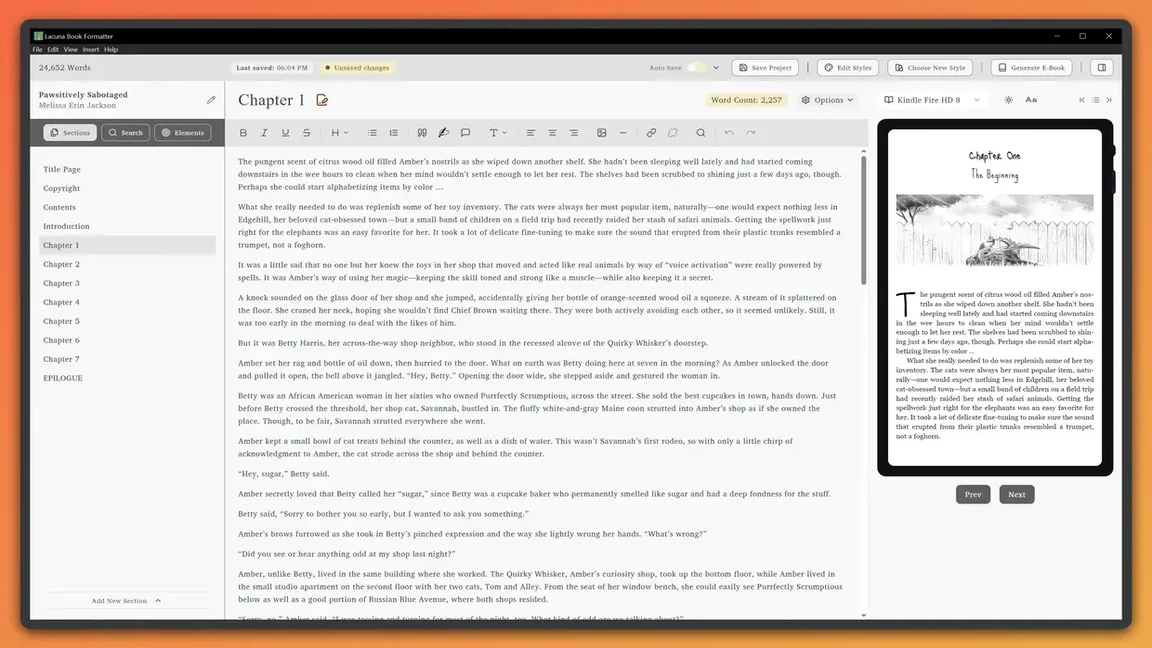
The good news is that your work is not wasted. When you import your manuscript, Lacuna reads your Word styles, so a Heading 1 on your chapter titles becomes your chapters automatically. From there, Lacuna sets your running heads, drop caps, and page layout for you, updates the whole book when you change one thing, and gives you a clean ebook with a single click.
The short version: three steps
With Lacuna, book formatting software for Windows and Mac, the whole process is three steps:
- Import your Word document.
- Choose a book design.
- Export a print-ready PDF and an EPUB.
Here is what each step looks like.
Step 1: Import your Word document
Save your manuscript as a .docx file. If you wrote in Google Docs, choose File, then Download, then Microsoft Word (.docx). Then import it into Lacuna.
Lacuna reads your Heading 1 styles and automatically splits the file into chapters, front matter, and back matter. Your bold, italic, alignment, images, footnotes, tables, page breaks, links, and block quotes come across with the text. Scene breaks like *** or ### are converted into proper ornamental break elements.
The one thing worth doing before you import is making sure every chapter title is actually styled as Heading 1 in Word, not just made big and bold by hand. That single habit gives you clean chapter detection. For the full checklist, see best practices for importing your manuscript and the step-by-step import guide.
Step 2: Choose a book design
Once your manuscript is in, pick a style. Lacuna ships with professionally designed templates that set your fonts, chapter openings, drop caps, spacing, and headers in one click, and you can customize any of it. A live preview shows you exactly how each page will look as you work, so there is no guessing and no exporting just to check.
The nice thing is that everything stays connected. Change your chapter headings or your line spacing in one place, and every chapter updates to match, with a live preview so you see the result as you go. See choosing a book style and customizing your style settings.
Presets: multiple styles, reused everywhere
Presets are one of the most powerful parts of Lacuna. A preset is a saved style you can reuse, so you are never locked into a single look. Want three different ornamental breaks in your book, each easy to update and manage? Save each one as a preset and drop it in wherever you want it. Nearly every element in Lacuna supports presets, from headings and block quotes to tables, lists, callout boxes, captions, and ornamental breaks, so you can keep several distinct styles in one book and change any of them in one place.
And if you write another book later, you can bring all of your presets over from a past project, so your books keep a consistent look without starting over. See section and element presets and importing presets from another project.
Step 3: Export a print-ready PDF and an EPUB
From the same project, you export both files your book needs:
- Print-ready PDF. Lacuna generates a PDF with your chosen trim size, correct margins, and PDF/X-1a output for black and white or full color CMYK. It validates your print settings before export, so your file is built to pass distributor requirements. See export a print-ready PDF.
- EPUB. Lacuna generates a clean, EPUBCheck-validated EPUB for Kindle, Apple Books, Kobo, Nook, and other e-readers. See export your book to EPUB.
It all comes from the same project, so you never have to format your book twice, once for print and once for the ebook.
Formatting for Amazon KDP and other stores
If you are publishing to Amazon KDP, you need two things: a print-ready interior PDF for the paperback or hardcover, and an EPUB for the Kindle edition. Lacuna produces both, and its exports are built to meet the requirements of KDP, IngramSpark, Barnes & Noble Press, and other major print-on-demand and e-book platforms. Because Lacuna stays current with those requirements, your files are made to pass validation on the first upload instead of bouncing back.
Windows or Mac, one-time purchase
Lacuna runs natively on both Windows and Mac, so you do not need a Mac or a Mac-only tool to produce professional files. It works completely offline, your manuscript never leaves your computer, and it is a one-time purchase with lifetime updates rather than a subscription.
You can do all of the formatting and preview your entire book for free. You only pay when you are ready to export your finished files, and you can compare options on the pricing page.
Frequently asked questions
How do I convert a Word document into a book?
Save your manuscript as a .docx file, then import it into book formatting software like Lacuna. Lacuna reads your Heading 1 styles to split the file into chapters, keeps your bold, italic, images, and footnotes, and applies a professional book design. From there you export a print-ready PDF for paperbacks and hardcovers and a validated EPUB for e-readers. You do not touch any layout code.
What is the best software to format a manuscript for print?
You want software built specifically for book interior design rather than a general word processor. Lacuna is desktop book formatting software for Windows and Mac that imports your Word file and exports print-ready PDFs with correct trim sizes, margins, running heads, and PDF/X-1a output for print-on-demand services like Amazon KDP and IngramSpark. It is a one-time purchase, and you can format and preview your whole book for free before you buy. For a side-by-side comparison of the options, see our guide to the best book formatting software.
Can I make a print-ready PDF and an EPUB from the same Word file?
Yes. In Lacuna you import your manuscript once, then export both formats from the same project: a print-ready PDF for paperback and hardcover, and an EPUB for Kindle, Apple Books, Kobo, and other e-readers. You do not maintain two separate files or reformat your book twice.
Will my formatting from Word carry over?
Your structure and text formatting come across. Lacuna creates chapters from your Heading 1 styles and keeps your bold, italic, alignment, images, footnotes, tables, page breaks, links, and block quotes, and it converts scene breaks into ornamental breaks. Page layout details that Word is not built for, such as trim size, mirrored margins, running heads, and drop caps, are handled by Lacuna's book design rather than by your Word file.
Do I need a Mac to format my book?
No. Lacuna runs natively on both Windows and Mac, so you do not need a Mac or a Mac-only tool like Vellum to produce professional print and e-book files. It works completely offline, and your manuscript never leaves your computer.
Turn your manuscript into a real book
You have already done the hard part by writing it. Download Lacuna free, import your Word document, and see your finished book in the preview today. You only pay when you are ready to export your print-ready PDF and EPUB.
Ready to format your book professionally?
Format your book and fall in love with it before you spend a penny