
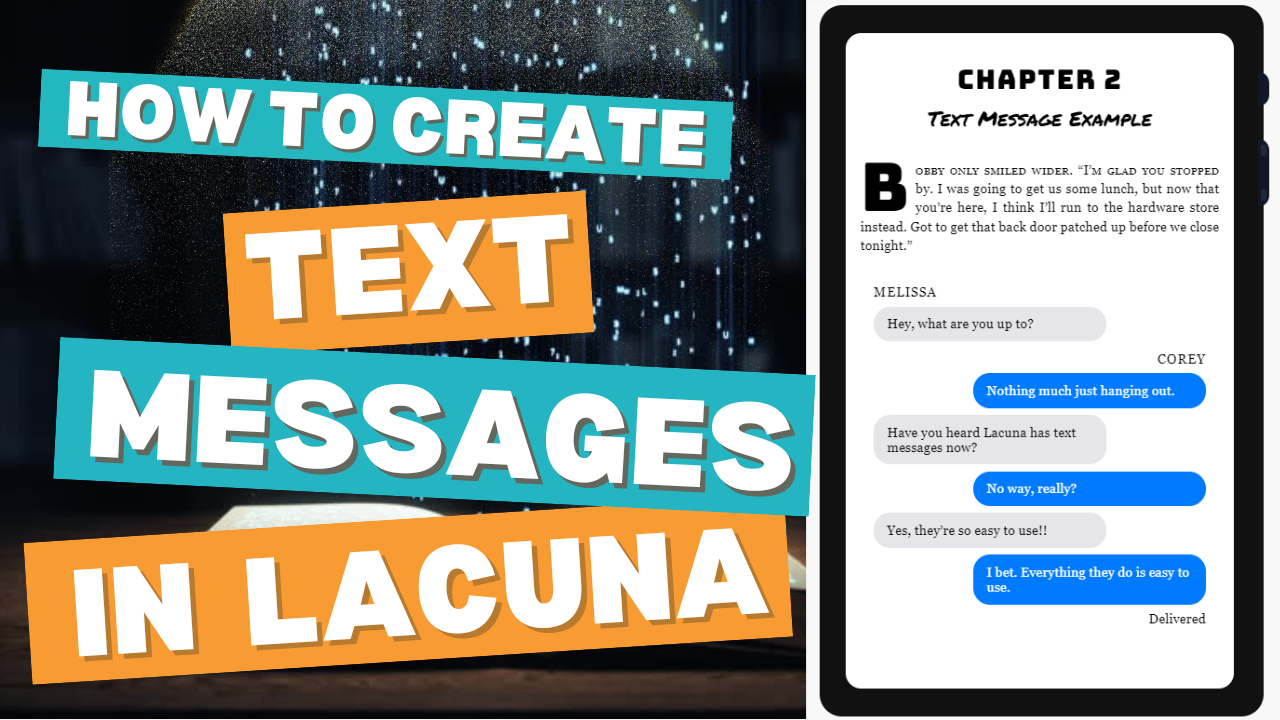
How to Format Text Messages & Chat Conversations in a Book
If you have ever tried to put a text-message exchange into a novel, you already know the problem: typed out as plain dialogue, it looks flat and reads awkwardly on the page. Authors want the conversation to feel like a phone screen: bubbles, names, the little “delivered” line underneath.
Lacuna does exactly that. This guide walks through how to format text messages and chat conversations in your book, how to turn a real thread into a book of text messages, and how it all exports cleanly to EPUB and print PDF.
How to turn your text messages into a book
The fastest way to do it in Lacuna takes three steps:
- Select your dialogue. Highlight the paragraphs you want to convert.
- Press Ctrl+Shift+T (or Cmd+Shift+T on Mac).
- Done. Each paragraph becomes its own message bubble.
That is the whole flow. You write (or paste) the conversation as ordinary text, and Lacuna converts it into a styled exchange. No HTML, no fiddling with layout, no screenshots of your phone.
For a complete step-by-step walkthrough, see the text conversations guide in our documentation.
How to write a text conversation in a novel
When you want characters to text each other mid-scene, keep writing your dialogue the way you normally would, one line per message. Then select those lines and convert them. Because each line becomes its own bubble, the rhythm of a real conversation comes through: short replies, one-word answers, the back-and-forth.
Every bubble is editable after you convert. Click a message to switch which side it sits on, drag messages to reorder them, or delete one you do not need.
Show who is texting
Readers should never have to guess who is talking. Lacuna gives you:
- Sender bubbles on the right for your point-of-view character
- Receiver bubbles on the left for whoever they are texting
- Character names on each message, placed above the bubble, inside it, or on the same line
You can have names repeat on every message or appear only when the speaker changes, so a long back-and-forth stays clean.
Set the status and time on each message
The small details are what sell a text conversation on the page. For any message you can:
- Set a delivery status: Sending, Delivered, Read, Failed, or none at all
- Add a timestamp in 12-hour or 24-hour format
- Reorder, reassign, or remove the message
A single Read under the last bubble, or a Failed at the worst possible moment, does a lot of storytelling in very little space.
Style it any way you want
This is where Lacuna goes further than a phone screenshot. There are no fixed themes you have to settle for. You choose:
- Any colors you want. Set the background and text colors separately for sender and receiver bubbles.
- Bubble shape. Adjust how rounded the corners are and how much padding sits inside each bubble, and decide whether bubbles hug their text or use a consistent width.
- Name styling. Control the font size, capitalization, spacing, and placement of character names.
- Receipts and timestamps. Size and style the delivery text to match.
- Spacing. Set the margins around the whole conversation so it sits right on the page.
Whether you want a clean modern blue, a muted literary palette, or something that matches your cover, you can build it.
Save a style and reuse it
Once a conversation looks the way you want, save it as a preset. Apply that preset to other conversations so every character’s texts stay consistent from the first chapter to the last, without redoing the styling each time.
Export to EPUB and print PDF
Your text conversations render correctly in both of Lacuna’s export formats:
- EPUB for Kindle, Apple Books, Kobo, Nook, and other e-readers
- Print-ready PDF for paperbacks and hardcovers through Amazon KDP, IngramSpark, and more
You handle the story. Lacuna handles the formatting so the bubbles look right everywhere your book goes.
Frequently asked questions
How do you format text messages in a book?
In Lacuna, you select the paragraphs you want to convert and press Ctrl+Shift+T (or Cmd+Shift+T on Mac). Each paragraph becomes its own message bubble. From there you set who is sending each message, add character names, choose any colors you want, and add delivery statuses or timestamps. When you export, the bubbles render correctly in both your print PDF and your EPUB.
Can I turn my real text messages into a book?
Yes. Paste your conversation into your manuscript as ordinary dialogue, then convert it to text-message bubbles in Lacuna. It is a common way to turn a meaningful thread, like a proposal, a group chat, or a years-long conversation, into a keepsake book or a memoir chapter.
Do text-message bubbles work in EPUB and print PDF?
Yes. Lacuna renders your text conversations in both formats, so they look right whether the reader is on a Kindle, Apple Books, Kobo, or holding a printed paperback. You do not handle any of the underlying HTML or layout work.
Can I show who is sending each message?
Yes. Sender messages sit on the right, receiver messages on the left, and you can add a character name to each one so readers always know who is talking. Names can sit above the bubble, inside it, or on the same line, and you can have them repeat on every message or only when the speaker changes. Click any message to switch its side, reorder it, or delete it.
Can I customize the colors of the text messages?
Completely. There are no fixed themes to pick from. You set the background and text colors separately for sender and receiver bubbles, so you can use any colors you want. You also control corner roundness, padding, font size, whether bubbles hug their text, the name styling, and the spacing around the whole conversation. Save a look as a preset to reuse it across every character in your book.
Try it with your own book
Text Conversations is available now in Lacuna for Windows and Mac. Download Lacuna free, import your manuscript, and format beautiful text conversations today. You only pay when you are ready to export your finished book.
Have questions or feedback about this feature? We would love to hear from you at [email protected]
Ready to format your book professionally?
Format your book and fall in love with it before you spend a penny