
How to Format a Children’s Book or Image-Heavy Book in Lacuna
If your book is full of pictures, the question is always the same: will the software actually handle it, or will the images break the layout the moment you export? With Lacuna, the answer is yes. Children’s books, picture books, cookbooks, art and photography books, and heavily illustrated non-fiction are exactly the kind of projects it is built for.
Download Lacuna free and follow along with your own manuscript.
Manage every image in one place
The first thing that makes an image-heavy book manageable is a real image gallery, and Lacuna gives you one. It is a single place to organize and control every image in your project:
- Folders. Sort your whole library into nested folders and drag images wherever you want them.
- Search and sort. Find any image by file name or alt text, and sort the library by name, date, or file size.
- Alt text in one place. Set the alt text for every image for accessibility, with a badge that shows what is still missing.
- See where each image is used. Click any image to see exactly which sections it appears in, and jump straight to them.
- Smart folders. Lacuna automatically gathers every image that is missing alt text or not yet used, so nothing slips through before you publish.
For an illustrated book with dozens or hundreds of images, having one place to manage them all is a real help.
Your images import straight from Word
When you import your manuscript, the images in your .docx file come across with your text, in place and ready to format. Lacuna supports JPG, PNG, and WebP, and brings them in for you automatically. For the cleanest result, see the import best practices guide.
Automatic compression that saves you money
Image-heavy books produce large files, and on Amazon KDP a larger ebook means a higher delivery fee taken out of every sale. Lacuna compresses every image for you on export, doing its best to preserve the quality of your art while keeping the file as small as possible. You can compress your images first if you like, but you do not have to. Lacuna handles it, and the smaller file size saves you money on every ebook you sell. For print, you stay in control of full color CMYK or black and white output.
A note on performance with large books
A book full of images asks more of your computer, because every image has to be processed. Depending on the machine you are working on, a very large book can run slower. This is exactly why Lacuna is free to try: open your real book in the trial and see how it performs on your own computer before you buy. If you run into any trouble, contact us and we will see what we can do to help, and we are always adding new optimizations to handle larger books with more images.
Inline images, full-page art, and full bleed
Place images alongside your text for spot illustrations and figures, or use a full-page image for a plate or a picture-book page. Full-page images can run to the edge of the page (full bleed) for print, and you choose how each one fits: scale it to fit, fill the page, or stretch it. Lacuna adjusts your trim for bleed automatically so the file stays print-ready.
Backgrounds and two-page spreads
Want art behind your text, or a single illustration that stretches across a two-page spread? Lacuna supports background images and split-page background images, which split one image across the opening spread so readers see the whole picture at once.
Pro tip: keep every chapter opening on the right
Want your full-page image always on the left and your text always starting on the right, so an open book reads as one clean spread? Add your art as a full-page image and set its Start Page Side to Verso (the left-hand page) in the section’s print settings. The section that follows then lands on the Recto (the right-hand page) every time. Lacuna inserts a blank page only when it is needed to keep the sides lined up, so your image-left, text-right pattern stays consistent through the whole book.
Images in your chapter openings
Give every chapter a consistent, designed feel with chapter heading images, whether that is a small decorative motif or a larger illustration at the top of each chapter.
Captions you control
Every image can carry a fully customizable caption. Set the font, size, and alignment, add a border in the style you want, and choose your colors. Save a caption style as a preset and every image in your book is captioned the same way.
Print and EPUB, from one project
When your book looks right, you export both files from the same project: a print-ready PDF for paperbacks and hardcovers, and a validated EPUB for Kindle, Apple Books, Kobo, and other e-readers. Your images render correctly in both.
Frequently asked questions
Will Lacuna work for my children’s book or my book with a lot of images?
Yes. Lacuna is built for image-heavy books such as children’s books, picture books, cookbooks, art books, and illustrated non-fiction. A full image gallery organizes every image with folders, search, and alt text, you can place images inline, full-page, full-bleed, in backgrounds, and in chapter headings, and Lacuna compresses every image automatically so your files stay small. Everything exports to print-ready PDF and EPUB.
How do I manage all the images in my book?
Lacuna has a full image gallery where you manage every image in one place. Organize your library into nested folders, search and sort the whole project, set alt text for accessibility, and click any image to see exactly which sections it is used in. Smart folders automatically gather any images missing alt text or not yet used, so nothing slips through before you publish.
What image formats are supported, and will large images bloat my file?
Lacuna supports JPG, PNG, and WebP images, and they import straight from your Word document. On export, Lacuna automatically compresses every image, doing its best to preserve quality while keeping the file small. Smaller ebook files mean lower Amazon KDP delivery fees, which saves you money on every sale. You can compress images yourself first, but you do not have to.
Can Lacuna do full-bleed images for a print book?
Yes. You can set full-page images that run all the way to the edge of the page (full bleed) for paperbacks and hardcovers, and choose how each image fits the page. Lacuna handles bleed for trimming and exports a print-ready PDF with PDF/X-1a output, in black and white or full color CMYK, for Amazon KDP, IngramSpark, and other print-on-demand services.
Can I add captions to my images?
Yes. Every image can carry a fully customizable caption, with control over the font, size, alignment, borders, and colors, and you can save a caption style as a preset to reuse across your whole book.
Try it with your own book
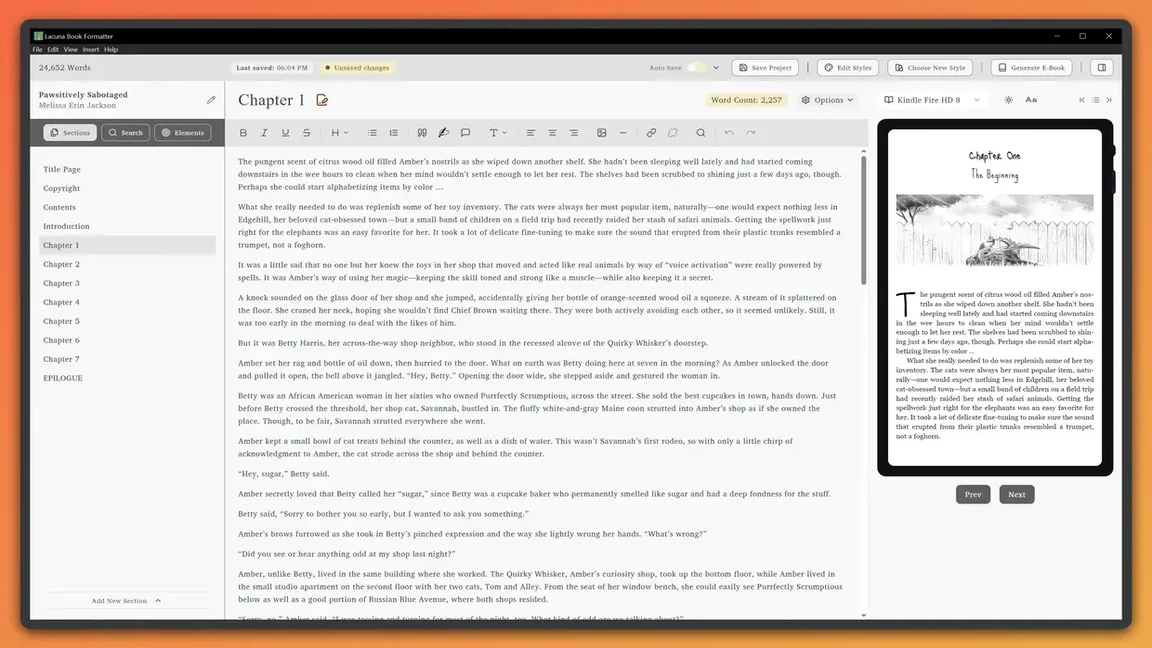
Download Lacuna free, import your illustrated manuscript, organize your art in the image gallery, and see exactly how every image sits on the page in the live preview. You only pay when you are ready to export your finished print PDF and EPUB.
Ready to format your book professionally?
Format your book and fall in love with it before you spend a penny