
How to Format a Non-Fiction Book in Lacuna
Non-fiction is built differently from a novel. A reference book, a textbook, a memoir, or a multi-part series is more than a stack of chapters. It usually has parts and volumes, a table of contents with real hierarchy, and elements a novel never needs: callout boxes, tables, footnotes, and more.
Lacuna gives you control over all of it, and every element is yours to customize. You come in, and you get all of it. Here is how the structure works, and how it all exports to print and EPUB from one project.
Download Lacuna free and follow along with your own manuscript.
Build the structure your book actually has
Most books are more than a list of chapters. Lacuna gives you three levels of structure and a table of contents that understands all of them.
Sections, not just chapters
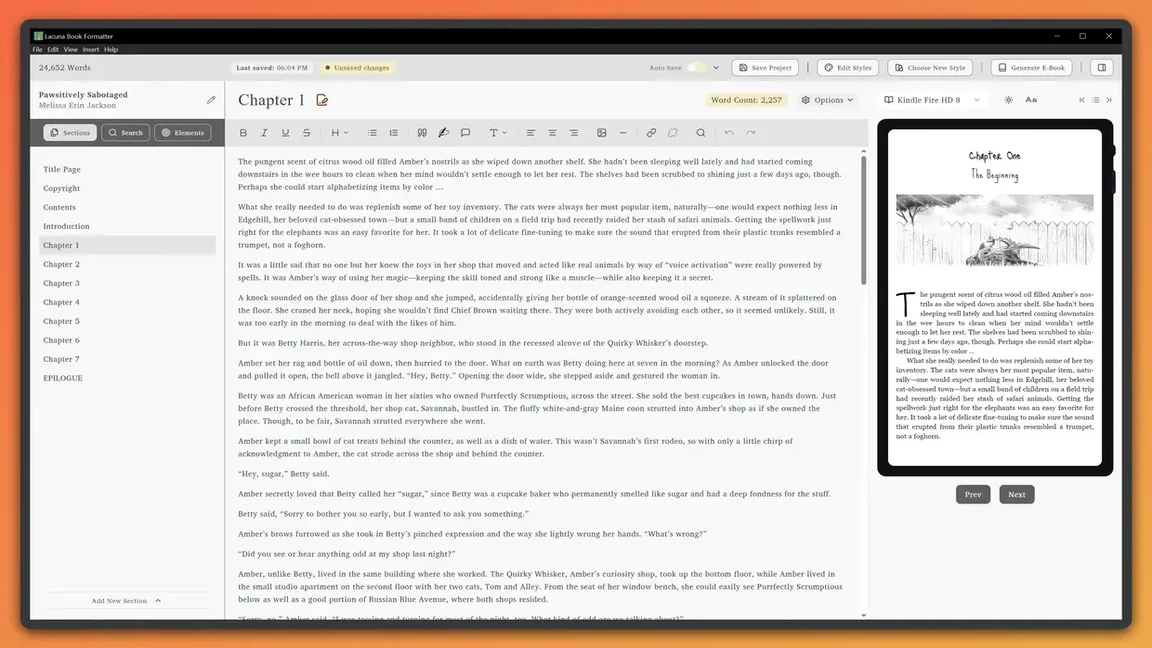
In Lacuna, a chapter is one kind of section. Your front matter, your chapters, and your back matter are all sections you can add, reorder, rename, and restructure freely. When you import your manuscript, your Word headings become sections automatically, and from there you shape the structure however your book needs it. See section types for the full picture.
Book parts that group your sections
Most non-fiction reads in stages, so group your sections into book parts. Select the sections, right-click, and create a part. For every part divider you choose how it looks:
- A ready-made styled part page (control the part number and title typography and spacing)
- A full-page image divider
- A fully custom page where you add any content you want
- No divider page at all, so the part groups your sections in the table of contents without interrupting the reading flow
Inside the table of contents, the sections in each part are indented automatically, so the hierarchy is clear to the reader.
Book volumes for box sets and omnibuses
Need to bundle several complete books into one? Book volumes let you place multiple independent books inside a single project, which is exactly how you build a box set or a series omnibus. Each volume is a self-contained book with its own table of contents, while the root table of contents shows only the volume titles, giving readers a clean top-level map of the whole collection.
Volumes use the same four divider styles as parts (styled page, full-page image, custom content, or grouping-only), and you can place parts inside a volume to organize each book even further. It is the same simple workflow, scaled up to a whole library.
A real table of contents, under your control
The table of contents is where non-fiction structure becomes navigation, and Lacuna gives you control over every part of it. It builds automatically and updates the moment you change your structure, so it is never out of date.
- Hierarchy: turn on subheadings and set the depth, so H2 and H3 headings nest under their chapters with the numbering style you choose (decimal like 2.1, restarting per chapter, or a section symbol).
- Entries: control chapter numbering, whether you show the title, subtitle, or both, the separator between them, and which sections appear at all.
- Per-volume and per-part lists: every volume carries its own table of contents, and parts have their own spacing and indentation settings.
- Leader dots, your way: for print, turn leader dots on or off and pick dotted, solid, or a custom character of your own for the line between a title and its page number.
Every element, fully customizable
Structure is the big piece. The elements that fill your pages are just as customizable, down to the small details.
Tables
Tables give you three style panels: the table, the header row, and the data cells. Set the header background and text color, fonts, weight, and caps, control column widths and borders, and adjust cell padding. For long tables, turn on a header that repeats at the top of every page so your data stays readable in print.
Lists
Lists come bulleted or numbered, and you control the look completely. Choose your bullet shape or numbering style (1, a, A, i, or I), set where a numbered list starts, and adjust indentation and the spacing between items. Turn on text styling to give list items their own font, size, line spacing, and color.
Footnotes and endnotes
Both footnotes and endnotes are fully customizable. Change the fonts and the marker styles, set your separators, and they render correctly in both your print PDF and your EPUB.
Callout boxes
Callout boxes are perfect for tips, warnings, and key takeaways. Change the font and font color, and float a callout to the left or right of your text for clean margin-note effects.
Block quotes and handwriting blocks
Block quotes and handwriting blocks are great for separating and highlighting content, whether you are pulling out a quotation or setting apart a personal note. Customize the font and colors to make each one stand out the way you want.
Images and captions
Add images and figures inline, set full-page images, or place chapter heading images at the top of each chapter. Every image can carry a fully customizable caption with control over the font, alignment, borders, and colors.
Links
Add working links for references and resources, live in your EPUB and styled to match your book.
Print and EPUB, from one project
When your book is structured, you export both files from the same project: a print-ready PDF for paperbacks and hardcovers, and a validated EPUB for Kindle, Apple Books, Kobo, and other e-readers. Your volumes, parts, footnotes, tables, and table of contents all render correctly in both.
Frequently asked questions
Can this format my non-fiction book?
Yes. Lacuna gives you full control over non-fiction structure: organize your book into volumes, parts, and sections, and build a table of contents with real hierarchy. It also handles footnotes and endnotes, callout boxes, block quotes and handwriting blocks, tables, lists, links, and images, and every one of those elements is fully customizable. Everything exports to a print-ready PDF and a validated EPUB.
Can I organize my book into parts and sections?
Yes. You group sections into book parts with a few clicks. For each part divider you can use a ready-made styled page, a full-page image, your own custom page, or no divider page at all (grouping only in the table of contents). Part typography and spacing are fully customizable, and the sections inside a part are indented in the table of contents.
Can I create a box set or multi-volume book?
Yes. Book volumes let you bundle multiple complete books inside one project, which is how you build a box set or omnibus. Each volume is a self-contained book with its own table of contents, while the root table of contents shows just the volume titles for a clean top-level hierarchy. You can place parts inside volumes to organize each book further.
How much control do I have over the table of contents?
Full control. Lacuna builds the table of contents automatically and updates it as you add, remove, or rearrange sections. You control chapter numbering, title format and separators, which sections appear, and hierarchy depth so subheadings nest under their chapters. For print you can turn leader dots on or off and choose dotted, solid, or a custom character of your own.
Are footnotes, tables, and callouts customizable?
Yes, fully. Footnotes and endnotes let you change fonts, marker styles, and separators. Tables let you style the header row, fonts, column widths, and borders, with a header that repeats on every page of a long table. Callout boxes let you change the font and font color and float them to the left or right of your text. Lists, block quotes, handwriting blocks, and image captions are all customizable too.
Start formatting your non-fiction book
Give your non-fiction book the structure it deserves. Download Lacuna free, import your manuscript, and build your volumes, parts, sections, and table of contents in a live preview, with every element styled exactly the way you want. You only pay when you are ready to export your finished print PDF and EPUB.
Ready to format your book professionally?
Format your book and fall in love with it before you spend a penny